%20(2400%20x%202400%20px)%20(1).png)
Phone photography for adults 18+
How to Take Feet Pics With Your Phone: A Beginner’s Guide
By Smart Girl
You’ve cleared a space and opened your camera, but the first photo comes out flat and gloomy. Before you order a ring light, try moving your setup. Sometimes it really is the light.
To take clear feet pics with your phone, start with soft window light, a plain background and a steady camera. Get one clear photo first, then play with the angle and framing. Before you share anything, check the picture and the location information saved with it. We’ll go through each part.
This guide is for adults 18+ taking non-explicit feet pics. Better photos don’t guarantee sales, but learning the basics can save you a lot of unnecessary fuss. If you’re still deciding whether selling is for you, start with the beginner’s guide to selling feet pics.
Start with what you already have
Use the phone you already have. Add a clean lens, a plain surface and somewhere stable to support it, and you can try your first shoot. If pressing the shutter makes everything wobble, use the timer. The fancy camera can wait.
A plain towel or an uncluttered patch of floor works. Before you settle in, move mail, work badges and family photos out of the shot, and check any mirrors. The background doesn’t need to tell anyone where you live.
Sit somewhere comfortable. Don’t balance on furniture or hold an awkward position just to copy a picture you found online.
Find the light before choosing the angle
Try a spot beside a window, out of any stripe of direct sun. Keep the phone and background in place for your first photo. For the second, turn slightly toward the window. Open both saved photos and compare the shadows and bright patches. Keep the version where you can see detail clearly.
If there’s a glaring white patch, move out of the sunbeam or soften the light with a sheer curtain you already have. Take another photo before deciding you need another light.
For this first test, switch off nearby lamps if they make the photo look orange or patchy. Keeping one main light source makes it easier to see what each change does.
A little shadow is fine. You want to see the detail, not brighten everything until your feet disappear into a white blob.
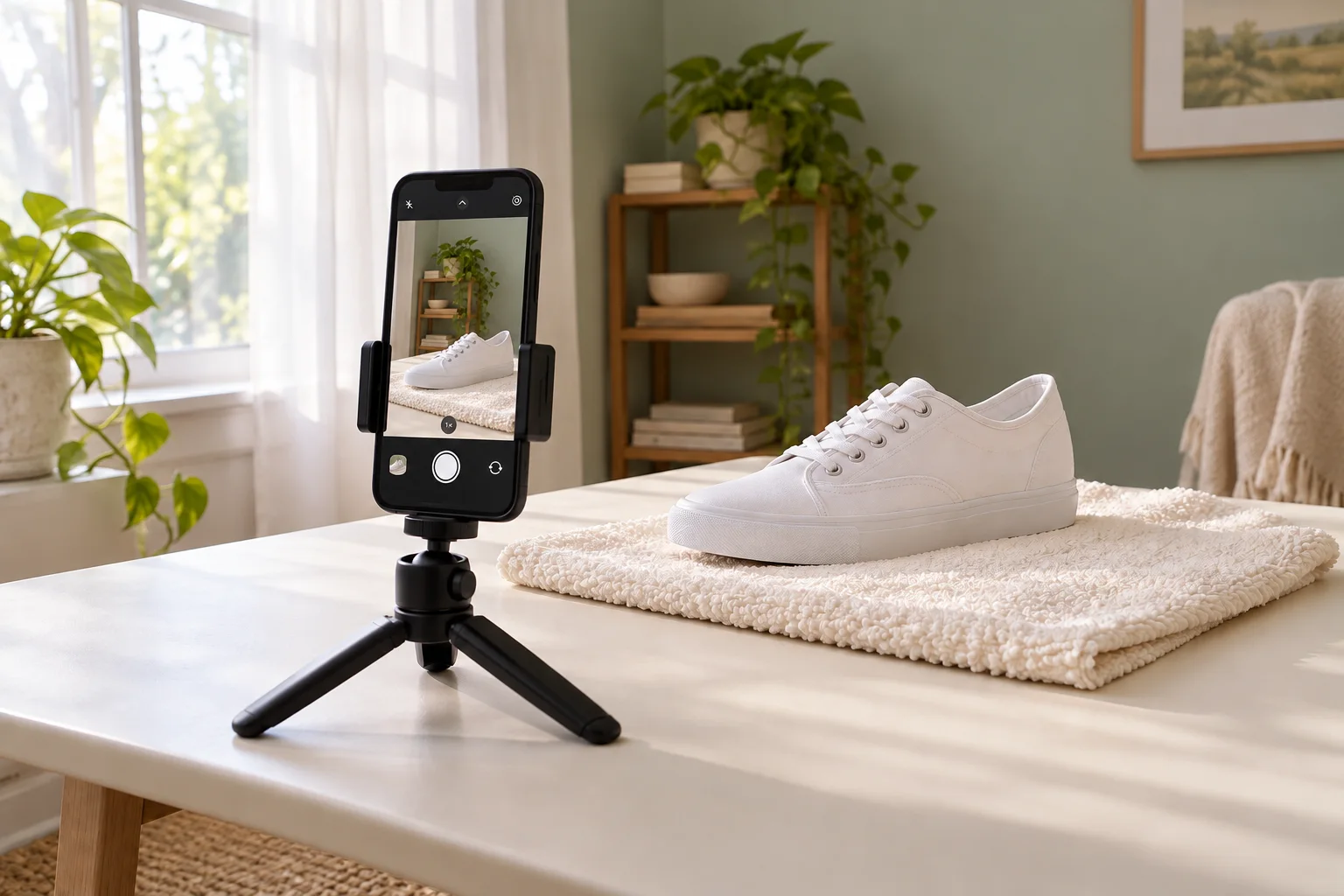
A simple window-light test
Start beside a window, outside the direct sunbeam. Keep your background plain.
Support it securely. Frame your feet, tap to focus, then take one photo.
Zoom in for sharp edges. Look for bright patches with missing detail. Change one thing and compare.
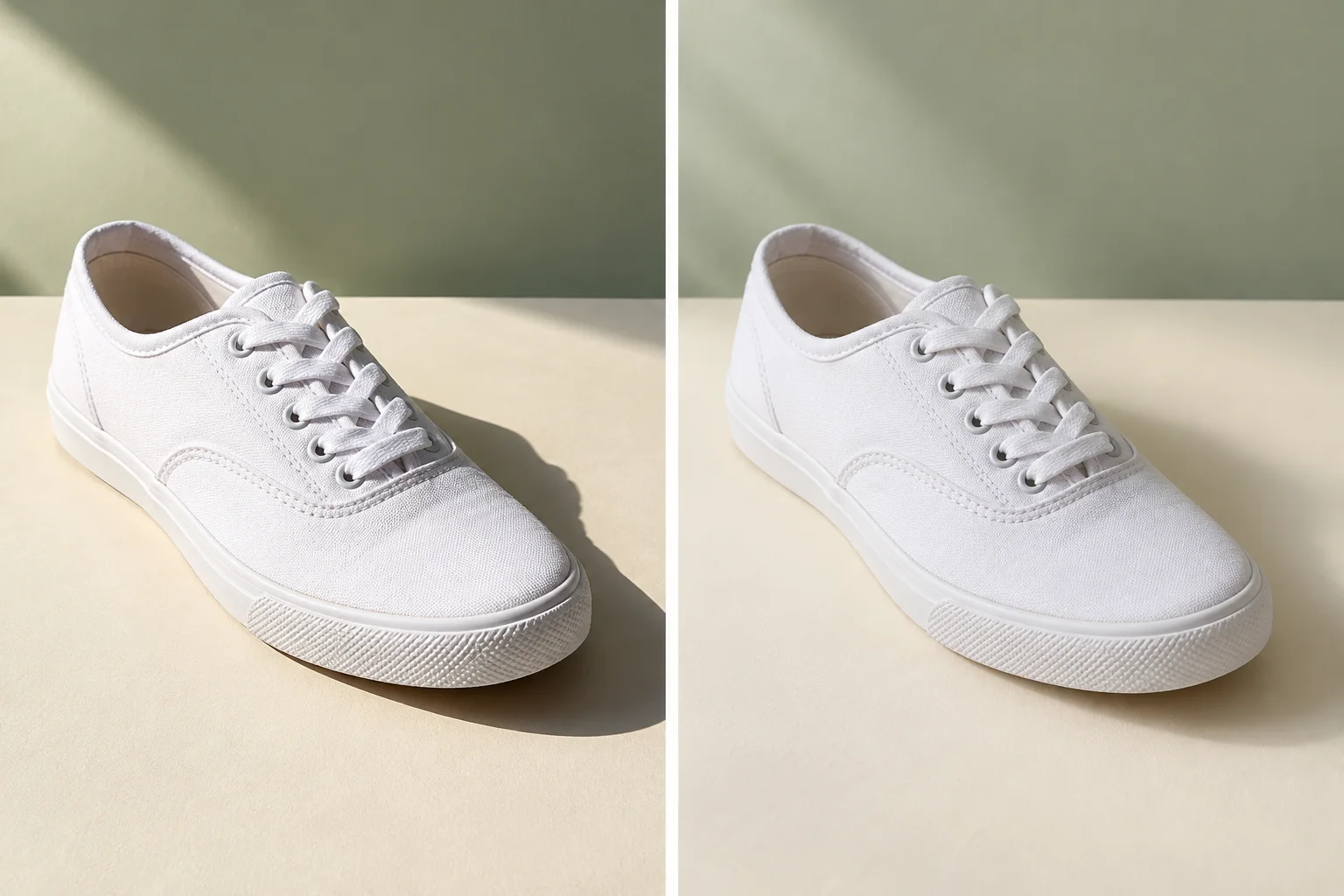
Get one sharp test shot
Start in your phone’s ordinary Photo mode, without a filter. Wipe the lens with a suitable soft lens cloth and support the phone securely. Frame a little wider than you need so a tiny movement doesn’t cut off your toes.
On iPhone, tap where you want the camera to focus, then adjust the exposure control beside the focus area if the picture is too bright or dark. Apple also explains how to lock focus and exposure in its camera-tools guide. Android controls vary, so check your phone maker’s instructions if those options aren’t obvious.
Take one photo, then open the saved image and zoom in. Check a clear edge, such as the outline of a toenail: is it sharp, or does it look smeared? Look at the brightest patch too. If its detail has disappeared into white, try lowering the exposure and take another shot.
Still not right? Match the problem to one change:
- Everything looks smeared: steady the phone and try the timer, keeping your feet still until the shot is finished.
- The photo looks dark and grainy: move to brighter, soft light and retake it before trying to brighten it heavily in an editor.
- A close-up won’t focus: move the camera back a little. You can decide on the crop afterward.
- The towel is sharp but your feet aren’t: tap your subject to focus again, then retake the photo.
Keep the first photo so you can compare the two. If the change helped, stick with it. If it didn’t, put things back and try something else. Much easier than taking thirty photos and wondering why none of them looks quite right.
Build a small set from one simple setup
Try this for your first setup: sit comfortably with your feet on a plain towel and the phone looking down at a gentle angle. Leave a little room around the edges, and choose a position you can hold without straining.
Once that frame works, keep the background and light in place. Try a slightly wider view, then a closer crop. Change one thing at a time so you can tell what improves the picture.
You don’t need twenty almost-identical photos. Pick a few that give you a different view but still feel like one set. And if a pose hurts, or shows more of you than you want to share, skip it. You’re allowed to keep a boundary even when someone asks nicely.
Keep the editing light
Use light editing to straighten the frame, tidy the crop, and correct obvious brightness or color problems. Compare the edit with the original. If the towel is suddenly blue or the skin has lost all texture, pull the adjustment back.
A little texture is normal. You don’t need to smooth every line away. Keep the photo clear and accurate rather than reshaping your feet or editing out details that a buyer expects to see.
If a photo is badly blurred, take another one. You could spend an hour trying to rescue it, but you’re allowed to make this easier on yourself.
Save an edited copy and keep the original private. Give the copy a neutral file name, without your full name or address, then open that exact file and check the crop and quality. Make sure you’re sending the edited version you meant to share.
Do the privacy check before uploading
Don’t skip this bit, even if you’re happy with the photos. Check what someone can see in the picture and what information is saved with the file.
First, look around the entire frame, including reflections. Check for faces, identifying marks you don’t want shown, documents, recognizable views, and other people. Don’t reuse a photo from a personal account if you’re trying to keep that account separate. None of these steps guarantees anonymity.
Second, check location information. On iPhone, Apple’s location-metadata guide explains how to remove a photo’s location and turn Location off in the sharing options. Check the instructions for your software version and the actual method you’re using to send the image.
Google Photos has an important limitation: it can’t remove location information originally added by your camera. Hiding a location within Google Photos is also not the same as removing it from a downloaded file you send elsewhere. Read Google’s explanation of photo locations before relying on a sharing setting.
Check the final file you plan to send, not just the original in your gallery. If you’re unsure whether it still includes your location, pause rather than uploading a private photo to a random online “metadata remover.”
Once someone receives a photo, you can’t count on being able to recall every copy. A watermark or expiring link doesn’t change that. For payment warning signs and delivery boundaries, read the guide to avoiding scams.
Decide whether the photo is ready
Open the files you plan to use and ask three questions:
- Is the detail clear, with a deliberate crop and consistent color?
- Is everything visible something you chose to share?
- Have you checked the final file’s location information and your intended sharing method?
If you’re offering a set for sale, its description should match the actual files: what’s included, how many photos, and how they’ll be delivered. A good photo is only one part of an offer. The pricing and earnings guide covers the separate question of costs and pricing, without assuming every photo will sell.
For now, make one small practice set you feel comfortable with. Find your light, check the saved photos and put the phone down when you’re done. You can learn a lot without turning your whole afternoon into a production.